What Is an MTS File? The AVCHD Camcorder Clip, M2TS and How to Open It
MTS files hold AVCHD camcorder video in an MPEG-2 transport stream. VLC opens them for free. Jump to your question below, or work through it in order.

MTS files hold AVCHD camcorder video in an MPEG-2 transport stream. VLC opens them for free. Jump to your question below, or work through it in order.
MTS files hold HD video recorded by AVCHD camcorders from Sony, Panasonic and others. Inside sit H.264 video and Dolby Digital or LPCM sound in an MPEG-2 transport stream.
What sets an MTS file apart is its twin. Sony says M2TS files carry the same data under another name. Renaming one to the other works.
Free software opens an MTS file in seconds. VLC installs on every major system. Section 8 shows how to convert one with no quality loss.
Your old camcorder card is full of clips named with three letters after the dot. Windows shows a blank icon and your editor shrugs. Nothing is broken. Every MTS file on that card is a normal video clip. Your MTS file only needs the right player.
An MTS file is the video format that AVCHD camcorders record. Sony and Panasonic built AVCHD and introduced it in 2006, according to Wikipedia's AVCHD article. The MTS file format stores H.264 video and AC-3 or LPCM audio inside an MPEG-2 transport stream.
The letters point to the MPEG transport stream inside. The Library of Congress lists MTS as a short name for MPEG-2 transport stream. Sony says the twin extension .m2ts works the same way as an MTS file. Section 2 explains why one MTS file can carry either name.
Most people meet an MTS file after a family event, a school play or a holiday filmed on a camcorder from about 2006 onward. The footage looks great on the camera. Then the files land on a computer as blocks you cannot open.
An MTS file is an AVCHD video clip. It holds H.264 video and Dolby Digital or LPCM sound in an MPEG-2 transport stream. VLC opens it for free.
.mts, also written .MTS.m2tsPRIVATE/AVCHD/BDMV/STREAM on the card.m2ts and most editorsSTREAM beside folders named CLIPINF and PLAYLIST.Holding an MP4 instead? MP4 files have their own page. Section 7 sets the two formats side by side.
MTS and M2TS name the same kind of clip. AVCHD is the camcorder system around it. Sony says renaming one extension to the other changes nothing.
AVCHD is the system and MTS is one file type inside it. The AVCHD format site lists MPEG-4 AVC/H.264 video, Dolby Digital (AC-3) or Linear PCM audio and an MPEG-2 transport stream as the system layer.
Think of AVCHD as the full camcorder recipe. It covers the codec, the resolutions, the card folders and the file names. The MTS file format is only the video part of that recipe.
Sony answers this question directly on a support page. It says there is no functional difference between MTS and M2TS. You can rename one extension to the other and the clip still plays.
The name you see depends on how the clip reached your computer. Sony says drag and drop from the camera gives you an MTS file. Importing with Sony software gives you an M2TS file.
The Library of Congress adds the origin story of the M2TS file. Its format description for M2TS says the extension comes from the Blu-ray white paper. AVCHD is described there as a simpler relative of Blu-ray.
The three letters have a plain reason. Wikipedia says the MTS form exists because AVCHD files follow the legacy 8.3 filename convention. That rule leaves room for three letters after the dot and no more.
Blu-ray drew the wider picture. The Library of Congress says BDAV supports MPEG-2, MPEG-4 AVC and VC-1 video. AVCHD narrows that list to one video codec and two audio codecs.
An M2TS file also differs from a broadcast stream in one way. The Library of Congress says M2TS uses variable bit rate to optimize storage size. A broadcast transport stream is sent at a constant rate in most cases.
AVCHD 1.0 lists 1920x1080, 1440x1080 and 1280x720 modes. According to Wikipedia, the 2011 amendment called AVCHD 2.0 added 1080 at 50 and 60 frames per second and stereoscopic 3D. Those clips need more data per second but still end in .mts.
| Generation | Video added | Media |
|---|---|---|
| AVCHD | HD at 1920x1080, 1440x1080 and 1280x720, plus SD | 8 cm DVD, SD cards, Memory Stick, built-in memory |
| AVCHD Progressive | 1080 at 60p and 50p, up to 28 Mbps | SD cards, Memory Stick, built-in memory |
| AVCHD 3D | Stereoscopic video using MPEG-4 MVC | SD cards, Memory Stick, built-in memory |
Every row still stores its video in a transport stream. That is why one player handles all three kinds of MTS file.
Not a DVD movie. Some AVCHD camcorders wrote 8 cm discs with the same BDMV structure as a card. The Library of Congress says DVDs use program streams, a different MPEG-2 format.
Your MTS file sits in PRIVATE/AVCHD/BDMV/STREAM. Folders beside STREAM hold management data that belongs to the camera.
Open the card on a computer and you find a folder tree, not a pile of videos. The MTS file format lives at the bottom of that tree. Your MTS file sits beside management files that belong to the camera.
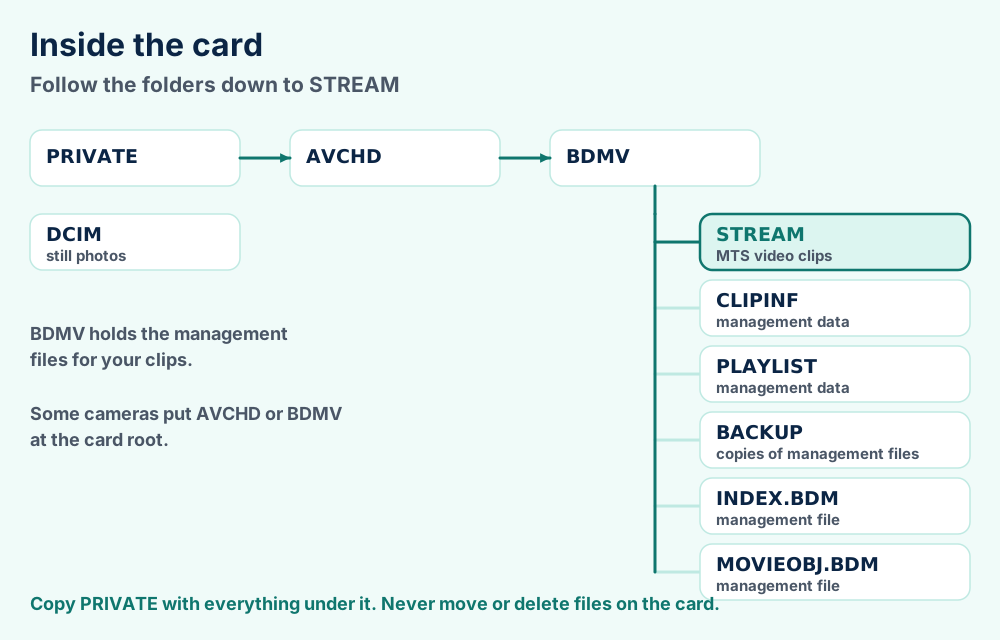
The folder names come from the Blu-ray disc design. The AVCHD article on Wikipedia says the structure is derived from Blu-ray but is not identical to it. Solid-state Panasonic and Canon camcorders put the AVCHD folder inside PRIVATE.
Every MTS file sits in STREAM. The folders CLIPINF, PLAYLIST and BACKUP sit beside it with files like INDEX.BDM and MOVIEOBJ.BDM. A JVC camcorder manual describes the BDMV folder as holding management information files for the clips.
Still photos from the same camera go to a root folder called DCIM. Raw photos from a camera body that also films video, like CR2 files or NEF files, follow their own rules.
Cards are only one place an MTS file lands. Wikipedia lists SD, SDHC and SDXC cards, Memory Stick, built-in hard drives from 30 GB to 240 GB and built-in flash memory. Memory cards and hard drives use the FAT file system.
DVD camcorders put BDMV at the disc root. A Canon hard drive model put it inside an AVCHD folder at the root. Memory card models from Panasonic and Canon use PRIVATE. Expect a small difference in the path and the same names below it.
Cannot find your clips? Look for a folder called PRIVATE at the root of the card. Open it and follow the names down to STREAM.
Install VLC and drag the MTS file onto it. Windows Media Player 12 lists .m2ts. Rename the clip if you prefer that player.
VLC is the quickest way to open an MTS file. VideoLAN's features page lists MPEG transport streams, H.264, AC-3 and LPCM. VideoLAN offers downloads for Windows, Mac, Ubuntu, Android and iOS. The player costs nothing and has no ads.
| Player | Platform | What to know |
|---|---|---|
| VLC media player | Windows, Mac, Linux, Android, iOS | Opens the clip directly. Drag the file onto the window. |
| Windows Media Player 12 | Windows | Microsoft lists .m2ts. Rename an MTS file to .m2ts if it refuses the name. |
| FFmpeg | Windows, Mac, Linux | Command line. Reads, converts and joins the clip. |
| Your editor | Desktop editors | Import the clip through the editor's media browser. |
Microsoft's Windows Media Player 12 file type list names .m2ts and describes it as based on the MPEG-2 transport stream container. The page does not list .mts. Renaming the file solves that gap.
.m2ts. Sony says the data inside stays valid.The VLC download page offers VLC for Mac OS X, Ubuntu, Android and iOS. The steps match Windows. Install the app, then open the MTS file from the app or share it into the app.
Convert the MTS file when you want it on a phone or tablet. Section 8 shows the lossless way.
A codec pack is not the answer. Players that already read H.264 and AC-3 need nothing extra. Install a trusted player instead of a random plugin.
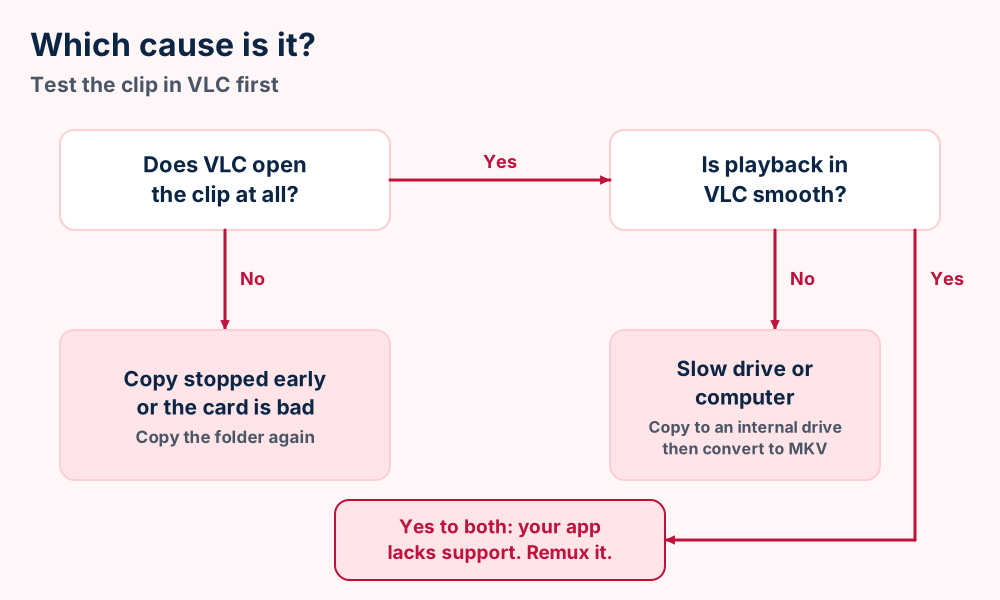
Test the clip in VLC. If VLC plays it smoothly your other player lacks support. If VLC stutters your computer or drive is too slow. If VLC fails, the copy is incomplete.
An MTS file that stutters or stays black has one of four causes. Three of them leave the clip untouched. Sort yours with the chart below before you copy anything again.
Silence with a moving picture points to the audio track. Wikipedia lists Dolby Digital at 1 to 5.1 channels and Linear PCM at 1 to 7.1 channels. An app without those decoders drops the sound and keeps the video.
Picture with no sound is the quickest sign of a limited player. Open the MTS file in VLC to compare. Sound in VLC and silence elsewhere confirms the other app is the weak link.
Stutter in VLC means a speed limit. Copy the MTS file to your internal drive and play it from there. If the picture still jerks, convert the clip to a lighter format as shown in section 8.
Combing lines on moving objects point to interlaced video, not damage to the MTS file. AVCHD lists 60i and 50i modes. Many MTS files carry interlaced pictures. FFmpeg offers a deinterlacing filter.
A transport stream is built for rough conditions. The Library of Congress description of MPEG-2 TS says it suits environments where errors are likely. Small packets let a player skip a bad spot and carry on.
FFmpeg's MPEG-TS demuxer options include resync_size, a size limit for searching for a new synchronization point. The default is 65536 bytes. FFmpeg uses it to find the next good packet after a bad one.
Not sure what extension you hold? File formats explained shows how to tell a container from a codec.
Copy the full PRIVATE folder to your computer with copy and paste. Keep the card untouched until a clip from the copy plays in VLC.
Copy the folder, not just the clip. Camcorder makers warn about touching card files from a computer. The safe habit is to copy and never move. Your original stays on the card until the copy proves good.
Sony's help guide says to import AVCHD movies you should use PlayMemories Home. It also warns against editing or deleting AVCHD files on the card from a computer. Such actions can damage the files or make them unplayable.
Canon gives similar advice on its support page for saving movies. It tells you to use the supplied software and keep the originals. It says changing or deleting camcorder folders from a computer can cause permanent data loss.
JVC's EVERIO manual repeats the point. It says not to move or delete the folders and files in the camcorder. Sony's camcorder manuals add that you should not modify the files or folders from a computer.
PRIVATE folder. Some cameras show AVCHD or BDMV at the root instead.PRIVATE with every folder under it to a new folder on your computer. Use copy and paste, never cut.Copying the full tree keeps the playlist and clip information folders with the clips. Camera software is built around that layout. A lone MTS file loses that context but still plays in VLC.
Never format the card first. Formatting wipes every clip. Format only inside the camcorder after you hold two good copies.
Sony says drag and drop gives you an MTS file and importing with its software gives an M2TS file. Both work. Choose one habit and keep it across your archive.
An MTS file records, MP4 shares and MKV stores. All three hold the same H.264 picture. Converting between them can cost nothing.
MTS keeps the camera's recording as it was shot. MP4 and MKV are better for sharing and storing. All three can carry the same H.264 picture. The choice is about the wrapper.
| Question | MTS | MP4 | MKV |
|---|---|---|---|
| Built for | Camcorder recording and Blu-ray discs | Sharing and streaming | Holding many tracks in one file |
| Packets | 188 or 192 bytes | Boxes | EBML elements |
| Holds H.264 video | Yes | Yes | Yes, per the Matroska codec list |
| Holds AC-3 audio | Yes | Test your target device | Yes, per the Matroska codec list |
| Holds LPCM audio | Yes | Re-encode to AAC to be safe | Yes, as PCM integer big endian |
The Matroska codec list at the IETF names A_AC3, A_PCM/INT/BIG and V_MPEG4/ISO/AVC. Those three cover the H.264 video and the AC-3 or LPCM audio of an AVCHD clip. That makes MKV the safest wrapper for a lossless move.
MTS holds one real advantage. The Library of Congress says a transport stream suits environments where errors are likely. Wikipedia adds that small packets give better error resilience than AVI, MP4 and MKV.
AVI files and FLV files are two other video containers you meet in the same folder. Both have their own pages. This page stays on the MTS file.
MP4 suits phones and web uploads. The MP4 file format page explains why. The MKV file format suits a home archive where you want sound and subtitle tracks kept together.
Use FFmpeg with -c copy to move an MTS file into MKV or MP4 with no quality loss. Re-encode only to deinterlace, resize or shrink.
You can convert an MTS file with no quality loss. The trick is to move the streams into a new container without decoding them. FFmpeg calls that stream copy. It works on any MTS file or M2TS file.
The FFmpeg documentation describes stream copy as copying packets without decoding, filtering or encoding them. Nothing is decoded and nothing degrades. It finishes in seconds.
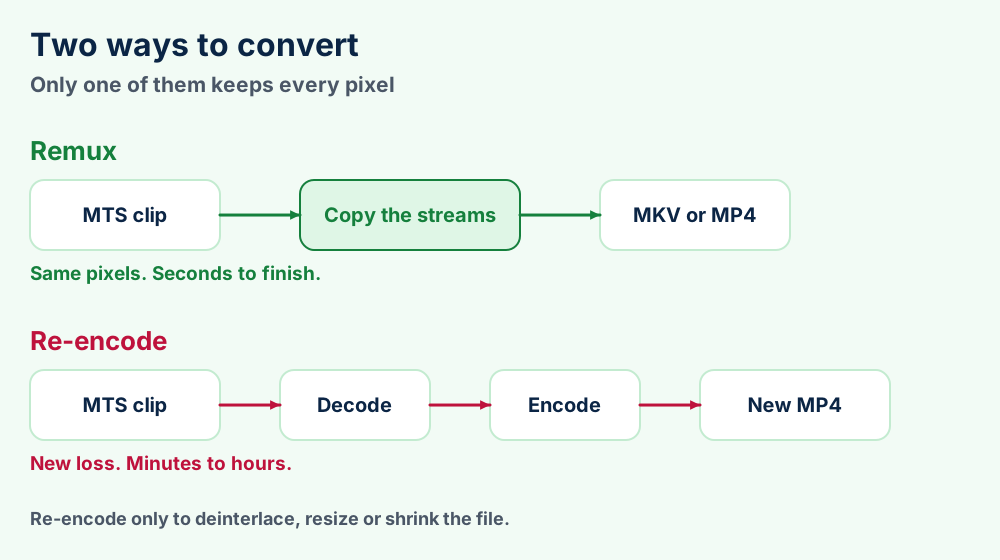
ffmpeg -i 00001.MTS -c copy clip.mkv. MKV accepts the H.264, AC-3 and LPCM streams.ffmpeg -i 00001.MTS -c copy clip.mp4. MP4 plays on more phones and televisions.ffmpeg -i 00001.MTS -c:v copy -c:a aac clip.mp4. Video stays exact and only the audio is re-encoded.FFmpeg selects one video stream and one audio stream when you give no map option. A clip with two audio tracks loses one. Add -map 0 to the command and every stream comes along.
Choose MKV when you want the safest home for AC-3 and LPCM sound. The IETF list shows Matroska names both. Choose MP4 when the clip must play on phones, televisions and web pages.
Filters cannot work on a stream copy. The FFmpeg concatenation page states that filters are incompatible with stream copying. Deinterlacing, resizing and cropping all need a re-encode.
Use ffmpeg -i 00001.MTS -vf yadif -c:v libx264 -crf 18 -c:a copy clip.mp4 to deinterlace. The FFmpeg H.264 guide calls CRF 17 or 18 visually lossless or nearly so. Lower values give higher quality and larger files.
Graphical converters hide this choice. Look for the words passthrough or stream copy and switch that option on. Otherwise the converter re-encodes and spends your quality for no reason.
Need only the sound? Export the audio track alone as MP3 files for a podcast or a voice memo.
Write a list of your clips and join them with ffmpeg -f concat -safe 0 -i list.txt -c copy joined.mkv. Every clip needs matching streams.
Join clips with FFmpeg's concat demuxer and stream copy. The result is one file with no quality loss. Every clip needs the same codecs and settings. Join clips from one camera and one mode.
The concat demuxer reads a text file that lists your clips. Its first line must read ffconcat version 1.0. Add one file line for every clip in recording order.
list.txt. Start it with ffconcat version 1.0.file 00001.MTS for every clip in order. Escape spaces with a backslash.ffmpeg -f concat -safe 0 -i list.txt -c copy joined.mkv.The FFmpeg wiki says the concat demuxer needs all files to share the same streams. It adds that MPEG-2 transport streams also join at the file level. The FFmpeg concatenation guide shows both ways.
The wiki also names a second route. The concat protocol joins files at the byte level. It lists MPEG-2 transport streams as files that work. Its example uses ffmpeg -i "concat:a.ts|b.ts" -c copy out.ts for .ts files.
Video editors import an MTS file directly or through a camera folder. Editing is smoother when you convert to an edit friendly format first. A remux keeps quality and a re-encode to a lighter codec speeds scrubbing.
Editors also export still frames. TGA files and PSD files keep full detail for retouching a frame later.
AVCHD lists 60i and 50i modes next to the progressive ones. An interlaced clip stores two half pictures per frame. Deinterlace before you upload or you see comb lines on fast motion.
Section 8 shows the yadif filter. A deinterlace re-encodes the video. Do it once at the end and keep your remuxed copy untouched.
Keep the original MTS file folder as your master. Share an MP4 copy and store an MKV remux if you want one file per event.
Keep the original MTS file folder and make a working copy. The original MTS file is your master. A converted MP4 is the version you share.
AVCHD sets a ceiling on data rate. Size follows from simple math. Wikipedia lists system data rates of up to 18 Mbit/s on DVD media, 24 Mbit/s on other media and 28 Mbit/s for AVCHD 2.0. Most Panasonic consumer models top out at 17 Mbit/s.
| Data rate | Where it comes from | One minute |
|---|---|---|
| 17 Mbit/s | Top rate of most Panasonic consumer models | 127.5 MB |
| 18 Mbit/s | AVCHD ceiling on DVD media | 135 MB |
| 24 Mbit/s | AVCHD ceiling on other media | 180 MB |
| 28 Mbit/s | AVCHD 2.0 ceiling | 210 MB |
Size equals megabits per second times 60 seconds divided by 8. Treat the table as a ceiling for planning space, because real clips shrink when the scene is simple.
Do not delete the originals after converting. A stream copy loses nothing. A re-encode does. Keep the source until you are happy with the output.
Old camcorder footage deserves a spot on a drive you check once a year. An MTS file on a dead card is gone for good. Copy the folder to a new drive when the old one nears the end of its life.
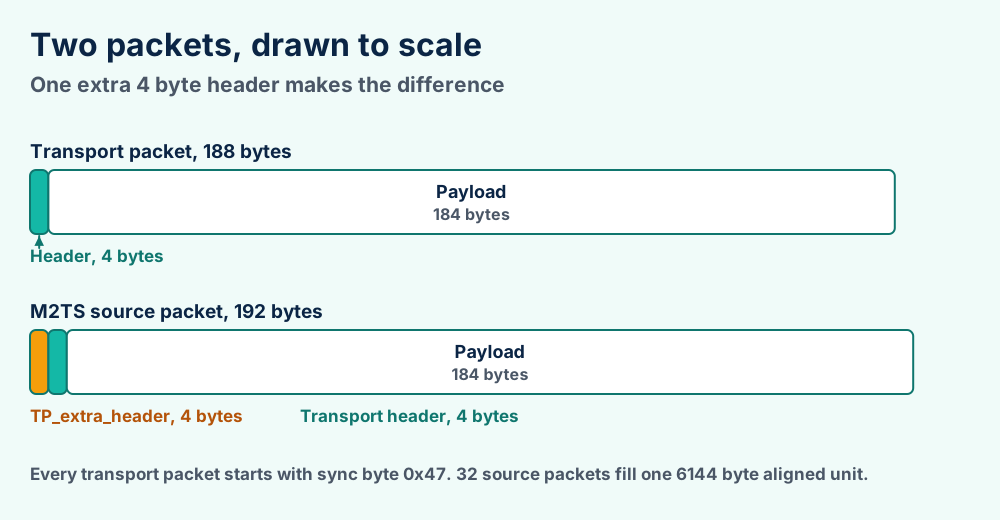
An MTS file is a stream of 192 byte source packets. Every packet carries a 4 byte timestamp header and a 188 byte MPEG-2 transport packet.
This section lists how an MTS file is built. The MTS file format follows two standards. Skip it unless you want the byte level facts. Every number comes from the sources linked below.
0x47, the first byte of every transport packet| Mode | Frame size | Frame rates |
|---|---|---|
| HD | 1920x1080, 1440x1080 and 1280x720 | 60i, 50i, 24p, 60p and 50p |
| SD | 720x480 and 720x576 | 60i and 50i |
| AVCHD Progressive | 1920x1080 | 60p and 50p |
| 3D | 1080 and 720 signals | 24p, 50i and 60i |
The Library of Congress description of MPEG-2 TS says a transport stream comprises 188 bytes per packet. It names the sync byte as 0x47 and the payload ceiling as 184 bytes. Wikipedia adds that the size was chosen for compatibility with ATM.
The Library of Congress description of M2TS says every source packet holds a 4 byte TP_extra_header and a 188 byte transport packet. Wikipedia describes that extra header as a copy permission field and a 27 MHz arrival timestamp.
Many pages call an MTS file a type of MPEG-2 video. It is not. The transport stream belongs to MPEG-2 systems. The picture inside AVCHD is H.264. The ITU page for H.222.0 shows the systems standard is a joint ITU and ISO/IEC text.
Blog posts also treat M2TS as a better quality version of MTS. Sony says the two carry the same data. The label tracks how the file was copied, not how it was filmed.
Packet and folder facts come from the Library of Congress and Wikipedia. Codec facts come from the AVCHD format site. Naming comes from Sony. FFmpeg behavior comes from the FFmpeg documentation. The MPEG transport stream article covers history.
The file is fine. Your editor or player lacks support. Remux the clip into MKV or MP4 and import that.
Copy the entire PRIVATE folder from the card again. If it still fails, the card or the recording is damaged.
Does your video end in a different extension? Read the AVI file format or the FLV file format page for those containers.
Did a converted copy still fail to play? Compare it with the MP4 file format and the MKV file format guides.
Did the card also hold camera photos that will not open? Try Canon CR2 photos, Nikon NEF photos, Sony ARW photos, Fujifilm RAF photos, Adobe DNG photos or older Canon CRW photos.
Do you need only the sound from a clip? Read about the MP3 file format or the WMA file format for the audio side.
Does a camcorder manual refuse to open? Check the PDF file format page. Browse every file format guide when the extension is not on this list.
Is Windows or your Mac showing an error instead of your video? Browse Windows fixes or macOS fixes. Start with the what-is hub or the category list for other files. Send anything else through the error form. The FileFix home page lists more guides.