What is an MDF File? The SQL Server Primary Data File and How to Open It
MDF files hold SQL Server databases as primary data files. Attach one to an instance to open it. Jump to your question below or work through it in order.

MDF files hold SQL Server databases as primary data files. Attach one to an instance to open it. Jump to your question below or work through it in order.
MDF files are the primary data files of Microsoft SQL Server databases. Every database has exactly one. The file holds startup details and points to the other files in the database.
What sets an MDF file apart is the team around it. NDF files add optional data space and LDF files hold the transaction log. SQL Server needs all data files and sometimes the log file to attach a database. Moving an MDF file alone can fail.
Attach the MDF file to a SQL Server instance and browse it in SQL Server Management Studio. Section 4 gives the steps.
Open the data folder of a SQL Server instance and you find files that end in .mdf beside files that end in .ldf. Microsoft's attach guide shows one at C:\Program Files\Microsoft SQL Server\MSSQL16.MSSQLSERVER\MSSQL\DATA\AdventureWorks2022_Data.mdf.
Microsoft Learn calls an MDF file the primary data file. Every database has exactly one. The MDF file holds startup details for the database and points to the other files in it.
Data files hold tables, indexes, stored procedures and views. Log files hold what SQL Server needs to recover transactions.
Some references expand the letters as Master Database File. Wikipedia's MDF page lists that name. Microsoft's own pages say primary data file and name .mdf as the recommended extension.
Another program uses the same three letters. Alcohol 120% saves disc images as MDF files. Section 10 shows how to tell the two apart.
Every SQL Server database has one MDF file. That MDF file holds startup details and points to the rest of the set. You open it by attaching it to a SQL Server instance.
.mdf.ndf secondary data and .ldf transaction logFound the file next to an MDS file? That points to a disc image and not a database. Read about ISO files for the general idea and see section 10.
MDF files start the database and point to the rest. NDF files add optional data space and LDF files hold the log. Microsoft calls all three extensions recommended.
Three extensions share one database. MDF files start it and NDF files extend it. LDF files record changes so SQL Server can recover.
| File | Extension | What Microsoft says it does | How many |
|---|---|---|---|
| Primary data file | .mdf | Contains startup details for the database and points to the other files | Exactly one |
| Secondary data file | .ndf | Optional user defined data files that can sit on different disks | Optional |
| Transaction log | .ldf | Holds information used to recover the database | At least one |
The table follows the database files and filegroups page, which calls all three extensions recommended. Most databases work well with one data file and one log file, says the same page.
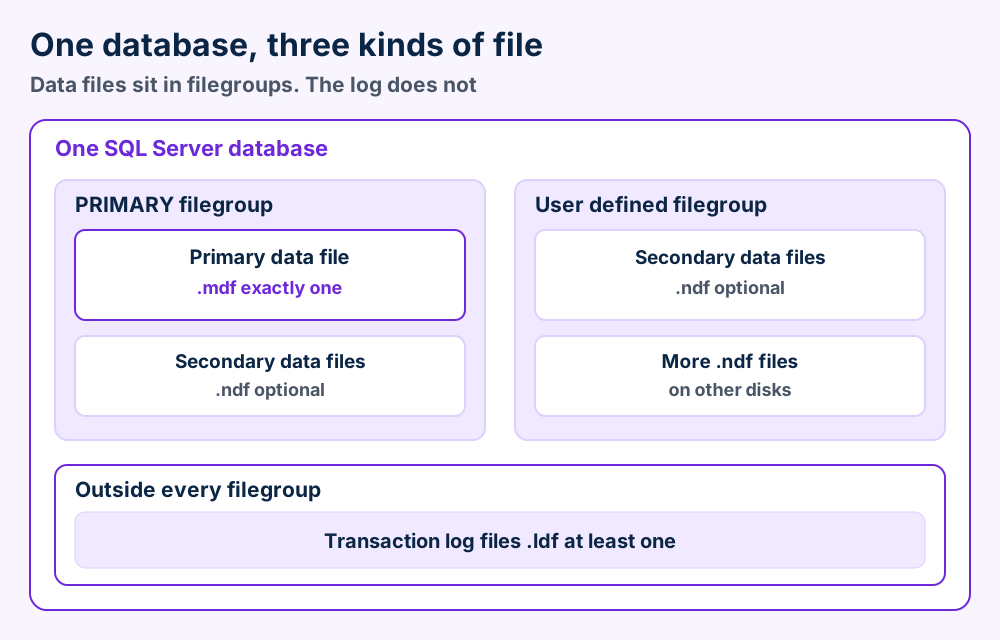
A filegroup gathers data files for administration and placement. The PRIMARY filegroup holds the primary data file and all secondary files you leave unassigned.
A file belongs to one filegroup and one database only. Transaction log files never join a filegroup.
SQL Server gives every file two names. The logical name appears in SQL statements and must be unique inside the database. The operating system name is the path you see in File Explorer.
Databases that use FILESTREAM add folders of unstructured data. Those folders must be present and available when you attach the database.
Database snapshots store their data in sparse files. SQL Server cannot detach or attach a snapshot, per the detach and attach guide.
Keep the set together. Copy the MDF file with all NDF files and LDF files from the same database. Attach needs all the data files.
Attach the MDF file to a SQL Server instance and browse it in SQL Server Management Studio. Attach is the documented route.
An MDF file needs a SQL Server instance behind it. The instance reads the pages of the MDF file and shows you tables.
Microsoft documents attach as the way to bring an MDF file into an instance. Three routes lead there. Start with the SSMS dialog if you attach one file once.
| Route | Best for | What to know |
|---|---|---|
| SSMS Attach dialog | One look at one database | Right click Databases, select Attach and add the MDF file |
| CREATE DATABASE FOR ATTACH | Scripts and repeat work | Needs a FILENAME entry for the primary file |
| LocalDB with AttachDbFileName | Developers on one PC | The connection string names the MDF file. One LocalDB instance opens a file at a time |
Older guides use sp_attach_db. Microsoft says that procedure will be removed in a future version and recommends CREATE DATABASE ... FOR ATTACH instead, per the attach a database page.
LocalDB users can skip the dialog. The connection string Server=(LocalDB)\MSSQLLocalDB;Integrated Security=true;AttachDbFileName=D:\Data\MyDB1.mdf comes straight from the LocalDB page.
The first LocalDB connection can time out while Windows creates the automatic instance. Wait a few seconds and connect again.
Trust the source first. Microsoft recommends you do not attach databases from unknown sources. Check one on a nonproduction server with DBCC CHECKDB and read its code before you attach it anywhere real.
Right click Databases in Object Explorer, select Attach and add the MDF file. Detach the database from any other instance first or the attach returns an error.
Attach plugs an MDF file and its partner files into an instance. You need CREATE DATABASE, CREATE ANY DATABASE or ALTER ANY DATABASE permission.
The same job takes one statement. Add a FILENAME entry for the MDF file and one for the LDF file.
CREATE DATABASE MyAdventureWorks ON (FILENAME = 'C:\MySQLServer\AdventureWorks_Data.mdf'), (FILENAME = 'C:\MySQLServer\AdventureWorks_Log.ldf') FOR ATTACH;
Databases with extra data files or FILESTREAM filegroups need those files listed too. The CREATE DATABASE page holds the full syntax.
Attach looks for the log file at its old path unless you name a new one. If the log is gone and the shutdown was clean, attach can build a new log for a read write database.
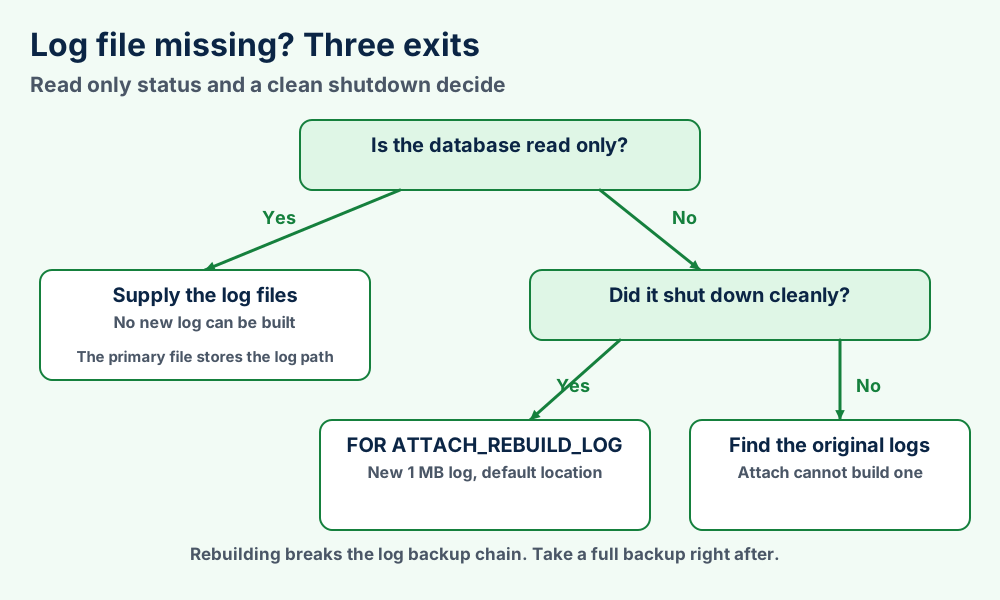
FOR ATTACH_REBUILD_LOG works for read write databases that shut down cleanly with all data files present. It creates a new 1 MB log in the default log location.
That option breaks the log backup chain. Microsoft recommends a full database backup right after.
Keep every detached log file until the MDF file attaches without them. Some attaches need the existing logs.
After an attach the database keeps its compatibility level unless the old level is gone. Microsoft's example moves a level 90 database to SQL Server 2019 and lands on level 100.
Detach the database in SSMS for a move between servers. Use the ALTER DATABASE relocation steps for a move inside one instance.
Detach removes a user database from an instance. Plan for a short outage. The MDF file and its partners stay on disk and you can attach them again or move them to a server with the same or a newer version.
Microsoft recommends the planned relocation procedure for moves inside one instance. Detach and attach suit moves between instances.
sys.database_files for type, name and physical path.You need membership in the db_owner fixed database role to detach.
Those limits come from the detach and attach guide.
ALTER DATABASE with MODIFY FILE and the logical name of every file.WITH ROLLBACK IMMEDIATE to close open connections.ALTER DATABASE database_name SET ONLINE.sys.master_files and compare the MDF file path with your plan.Detach is not a backup. Microsoft says detached copies carry no transaction log backups and no point in time recovery.
Error 32 means another process holds the MDF file. Error 5 and SQL Server error 5120 mean the account lacks permission. Fix the cause that the number names.
Two numbers explain most locked file messages. Windows error 32 means another process holds the file. Windows error 5 means the account has no permission.
SQL Server wraps both inside error 5120. The message starts Unable to open the physical file and ends with the operating system error number. That number names the real cause, per the error 5120 page.
sqlservr.exe. The User Name column shows the service account.If you changed the service account by hand, change it back through SQL Server Configuration Manager. Microsoft names that the supported way.
Attach sets file permissions. After an attach the service account and local Administrators group hold rights to the files when the connecting account can be impersonated. Otherwise the service account alone holds them.
Offline means a person took the database offline. Recovery pending and suspect mean startup recovery stopped. Check state_desc in sys.databases before you act.
SQL Server keeps every database in one state at a time. Check yours with SELECT name, state_desc FROM sys.databases; before you change anything.
| State | Meaning | Your next step |
|---|---|---|
| ONLINE | The database is available and the primary filegroup is online | Nothing to fix |
| OFFLINE | A user took it offline and it stays offline until a user acts | Use ALTER DATABASE database_name SET ONLINE |
| RESTORING | Files of the primary filegroup are being restored | Finish the restore sequence |
| RECOVERING | SQL Server is recovering it. The state is transient | Wait. Success sets it online and failure sets it suspect |
| RECOVERY PENDING | SQL Server hit a resource related error. Nothing is damaged | Find the missing files or the resource limit |
| SUSPECT | At least the primary filegroup is suspect and could be damaged | Go to section 8 |
| EMERGENCY | A user set it. The database is single user and read only | Use it for troubleshooting only |
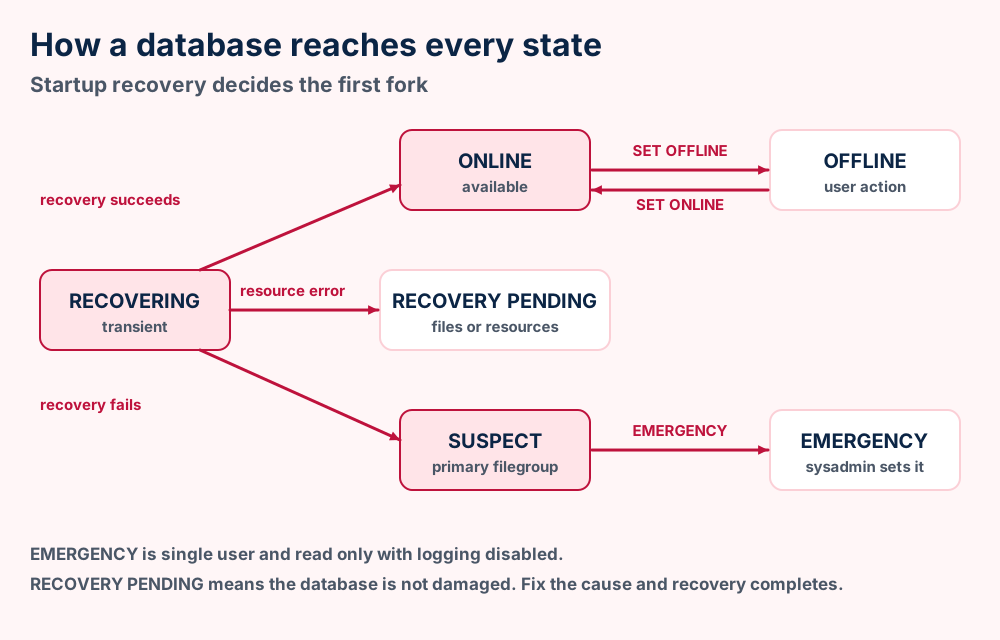
Recovery pending does not mean damage. Microsoft says the files could be missing or system resources could be blocking the start.
Only sysadmin members can set EMERGENCY. The state marks it read only, disables logging and limits access to sysadmin members. Microsoft describes it as a troubleshooting state.
state_desc for the database in sys.databases.ALTER DATABASE database_name SET ONLINE. Someone took it offline on purpose.sys.master_files for the physical names. Confirm all files exist at that path and the service account can read it.Restore the last known good backup before you try any repair. REPAIR_ALLOW_DATA_LOSS is an emergency last resort and can lose more data than a restore.
Restore the last known good backup before you repair an MDF file. Microsoft names a backup restore as the primary method for errors that DBCC CHECKDB reports.
The repair options sit behind that advice. Microsoft calls REPAIR_ALLOW_DATA_LOSS an emergency last resort for cases where no backup exists. The DBCC CHECKDB page holds every option.
| Option | What it does | Catch |
|---|---|---|
| REPAIR_REBUILD | Repairs with no possibility of data loss, from missing index rows to index rebuilds | Does not repair FILESTREAM errors |
| REPAIR_ALLOW_DATA_LOSS | Tries to repair all reported errors | Can deallocate rows or pages and lose more than a restore would |
| REPAIR_FAST | Keeps old syntax working | Performs no repair actions |
DBCC CHECKDB WITH NO_INFOMSGS;. You need the sysadmin or db_owner role.Emergency mode adds one rule. You cannot start DBCC CHECKDB there inside a user transaction and then roll it back.
Outlook files are a different job. Corrupt mail stores need their own tools. See Outlook PST files and Outlook OST files for those formats.
User database files sit in the data folder you or the instance chose. System databases use names like master.mdf and tempdb.mdf. Query sys.master_files for exact paths.
Every instance keeps system databases beside your own. Their MDF files follow fixed names you can spot in the data folder.
| Database | File names | What to know |
|---|---|---|
| master | master.mdf and mastlog.ldf | SQL Server cannot start if master is unavailable. Keep a current backup |
| tempdb | tempdb.mdf, tempdb_mssql_#.ndf and templog.ldf | SQL Server re-creates it at every start. Backup and restore are not allowed |
| Your database | A name you set, like AdventureWorks2022_Data.mdf | Sits in the default data folder unless you chose another path |
| LocalDB | Files under %LOCALAPPDATA%\Microsoft\Microsoft SQL Server Local DB\Instances | System files live there and user files sit where the user designates |
The master database page and the tempdb page list those names. Both pages point to Move System Databases for relocation.
Your paths will differ. Trust the query and not the example.
The default path comes from the registry. Change it in Server Properties on the Database Settings page and restart SQL Server.
System databases cannot live on UNC share directories, per the system databases page.
SELECT name, physical_name FROM sys.master_files; for every file the instance knows.WHERE database_id = DB_ID('master') and swap in your database name.The SQL Server 2022 edition table lists 10 GB for Express as the maximum relational database size. Standard and Enterprise list 524 PB.
An MDF file can grow on its own from the size you set. Without a maximum the MDF file keeps growing until the disk is full.
An MDF file that came from a disc or sits next to an MDS file is a disc image. An MDF file beside LDF files is a SQL Server database.
The same three letters name a second kind of MDF file. Wikipedia describes the Media Descriptor File as a proprietary disc image format developed for Alcohol 120%.
Alcohol 120% can add an optional MDS companion that stores layer data. The MDF file holds the raw disc copy, including multiple layers and tracks.
| Clue | SQL Server MDF file | Alcohol 120% MDF file |
|---|---|---|
| Where it came from | A SQL Server data folder or a copy of one | A disc copy or a download of a disc |
| Companion file | .ldf and sometimes .ndf | An optional .mds file |
| What it holds | Database pages of 8 KiB | A copy of a disc |
| How you use it | Attach it to SQL Server | Open it with disc image software |
SQL Server cannot attach a disc image because the file holds a disc and not data files.
Learn how disc images work in general from the ISO file page.
An MDF file is a series of 8 KiB pages numbered from 0, grouped into 64 KiB extents. Pages 1 to 3 hold allocation maps that repeat at fixed intervals.
Numbers in this section come from Microsoft Learn pages named beside them.
.mdfSQL Server divides the disk space of an MDF file into pages numbered from 0. Pages measure 8 KiB and start with a 96 byte header. Eight pages make a 64 KiB extent.
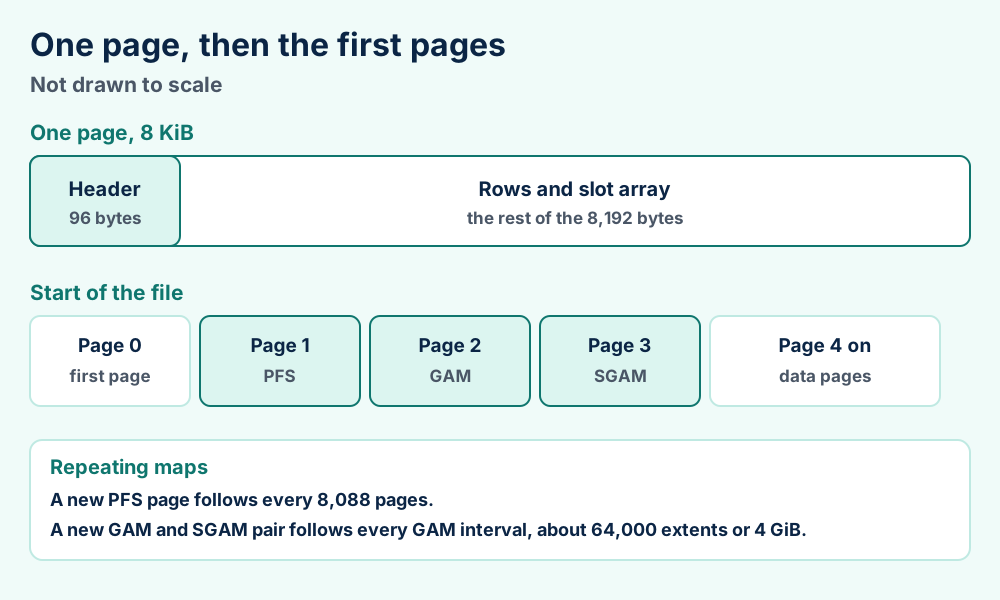
Allocation pages track free space. A PFS page sits at page 1. A GAM page and an SGAM page sit at pages 2 and 3 and repeat for a GAM interval of about 64,000 extents.
A new PFS page follows every 8,088 pages. Read the pages and extents guide for the full list of page types.
Attach upgrades the database to the internal version of the new instance. The compatibility level stays put unless the old level is no longer supported.
The way back is closed. Error 948 reads "A downgrade path is not supported" in its message, as the error 948 page shows.
An MDF file is not the full database. NDF files and log files belong to the set. Attach needs all the data files.
An MDF file is not a backup either. Detached copies carry no log backups and no point in time recovery.
Mail systems keep their data in store files of their own. See EDB files for the Exchange mailbox database and PST files for Outlook local storage.
OST files hold the offline copy of a mailbox and OLK files hold Outlook for Mac items. MBOX files keep a mailbox in one text file. The Exchange Server page and the Microsoft Outlook page cover the programs.
Single item files work differently from stores. EML files hold one message and VCF files hold contacts. ICS files hold calendar events.
Microsoft Learn supplies the file types, attach rules, states and page numbers. Wikipedia's SQL Server article and its Management Studio article give general background.
The format index lists all FileFix format guides. The file format guide explains how extensions work and the what is hub covers neighboring topics.
Attach it. Section 4 lists the clicks and the statement.
Check the companion file. Section 10 tells the two formats apart.
Does your MDF file come with an MDS file or from a disc? The ISO file guide explains disc images in general.
Is the file an Exchange database and not a SQL Server one? Read the Exchange EDB guide for the mailbox store.
Does Outlook refuse to open your mail file? The PST guide covers local storage and the OST guide covers the offline copy.
Did the file come from Outlook for Mac or from Thunderbird? See the Outlook for Mac OLK guide and the MBOX guide.
Do you need the idea behind extensions first? File format basics start from zero.
Does the trouble sit with your computer and not the file? Browse the Windows fixes or the Mac fixes. Still unsure? Send us the file details and we will look.